We write down something that needs a second look. Then we write down a task telling us to give it that second look. The first part is taking a note. The second part is remembering to take another note somewhere else.
That is the kind of small, repetitive hand-off we want an automation to handle. Not a dramatic demonstration involving every app we own. Just a note arriving and a review task appearing where we can find it.
For this walkthrough, we ask an agent to prepare that hand-off in Micelclaw’s managed n8n integration. We use a marked demonstration note, a visible filter and a review task. The note and business context are fictional. The workflow is created through the real agent, and the screenshots come from the running product.
The interesting part is not getting an answer that says “done”. It is opening what was built, understanding which notes it will accept and checking what happens when we give it an input.
Start with a rule we can explain
Our demonstration uses a deliberately conspicuous marker: note titles beginning with DEMO-AUTO-20261027. It is not a special Micelclaw command. It is an ordinary title prefix we choose so the workflow can distinguish our example from the account’s other notes.
The rule is simple: when a note is created, read it, check the beginning of its title and, if the marker matches, create a task to review it. The task title includes the note’s title so we can recognise the hand-off afterwards.
That is narrower than “do something useful with my notes”. It tells us what starts the automation, which records belong to it and what output we expect. It also gives us an obvious way to notice when something is wrong: an unrelated note should not become a review task for this demonstration.
We do not need to call that a sophisticated policy. It is a boundary we can point to on the screen, which is more useful here.

Ask for the workflow, not just an explanation
We ask Darwin to create Demo — note to review task. The request concerns a new demonstration workflow, not an edit to an existing production automation. The first version is created inactive, leaving us a chance to inspect the steps before listening for note events.
The response contains a reference to the workflow. We can follow that reference from the chat to the automation editor, rather than copying a name into another search box and hoping we open the right thing.
That distinction matters. A conversational explanation can describe a reasonable plan without creating anything. A workflow reference is a place to inspect what the agent actually prepared. We still have to open it; the reference itself is not a certificate that the workflow will run correctly.
We keep the request small enough to understand without the agent beside us. If the workflow needs a correction, the question should be which step is wrong, not which paragraph of the original conversation we have forgotten.
Follow the steps on the canvas
The workflow has four visible steps: Note created, Get created note, Matches demo prefix and Create review task. The names tell us what to look for, but we also inspect the settings behind them.
The first step listens for a new note. The next reads that note using the identifier from the event. The condition checks the title against our literal prefix. Only the matching branch continues to create the review task.
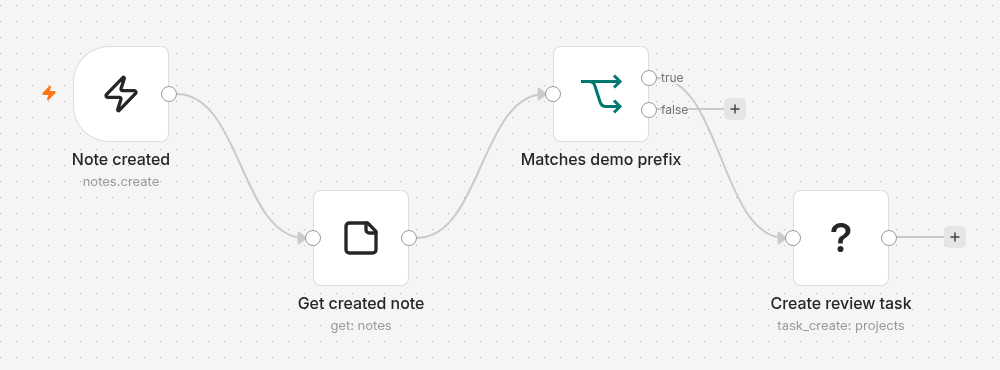
We do not ask the model to decide whether a note “probably deserves attention” on every run. In this example, that decision is explicit: the title either starts with the demonstration marker or it does not. The agent helps prepare the workflow; the workflow carries out the rule we can read.
There is a useful limit to the canvas, too. It shows the configured steps and their connections. It does not, by itself, show that the next note will reach the final step successfully. For that we need an execution and its result.
Keep the demonstration inside its boundary
The event at the beginning concerns newly created notes. The matching condition is what keeps the later action inside our example. Those are different responsibilities: one starts the workflow, and the other decides whether to continue.
We pay attention to both because a canvas can look reassuring while listening more broadly than intended. Our prefix is deliberately awkward for ordinary writing, making accidental matches unlikely and making the test easy to recognise in the account afterwards.
The filter is not a promise of exactly-once delivery, and a title marker is not a replacement for permissions. It is simply the scope of this small demonstration. A production workflow needs its own decisions about repeated events, retries, naming and what to do when an action fails.
We also leave existing notes and existing workflows alone. Showing a useful result does not require reorganising the whole account around a recording.
Run a small test, then open the result
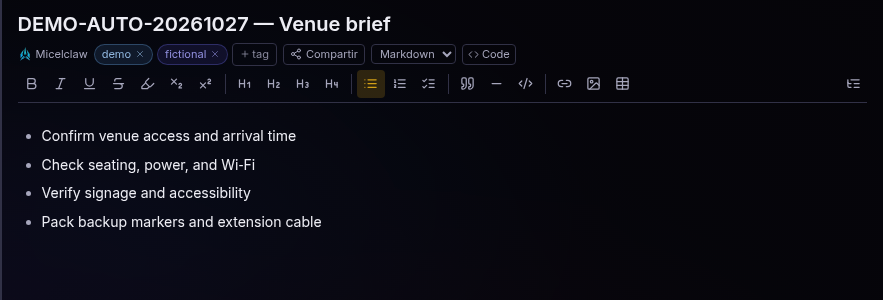
For the test, we enable this workflow and create a fresh note called DEMO-AUTO-20261027 — Venue brief. It contains a short fictional checklist covering venue access, power and Wi-Fi, signage and accessibility, and backup materials. Using a new note matters: opening an old note is not the event that this workflow is configured to listen for.
We then inspect the execution, not just the state of the activation switch. The recorded execution finishes successfully at Create review task. That tells us the event reached the workflow, the lookup returned a record and the matching branch reached the action. It is still worth checking what that action created.
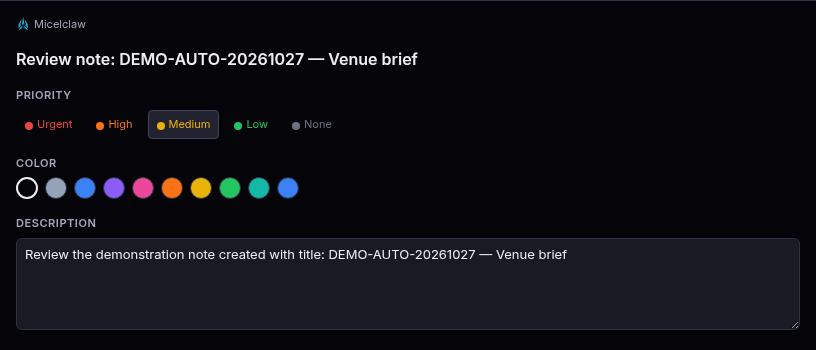
The last check happens outside the canvas: we inspect the resulting task in our task list. There is one matching task, titled Review note: DEMO-AUTO-20261027 — Venue brief. The note’s title gives us a recognisable connection between input and output. The workflow reference came back in the chat; we open the task list separately to check the output rather than implying the agent returned a task link too.
After the demonstration, we deactivate the workflow. The example does not need to remain listening to the account’s events after we finish recording it. The workflow remains available to inspect; leaving it inactive is different from deleting what we built.
Prepared, validated and executed are different states
We separate these words because they are easy to collapse into one reassuring “done”. A workflow can exist without being active. It can pass a structural check without having access to everything it will need at runtime. And an execution can start without producing the record we intended.
That gives us a practical sequence of checks: open the prepared workflow, inspect the rule, run a controlled input, read the execution and open the output. Each step answers a different question. None makes the later checks redundant.
Underneath, Micelclaw’s n8n integration uses the same capability and permission pipeline for its generated actions as the rest of the product. The task-creation action in this example is named projects.task_create internally; that domain name is not a promise about the label shown in the interface. An operation that requires approval must not be presented as completed while it is waiting for that approval. The action’s actual response matters more than how confident the surrounding explanation sounds.
For this article, we keep the workflow’s purpose visible on the canvas rather than turning that plumbing into the main story. The screen should help us explain what the automation does when we return to it next month.
What it does not do yet
This is a narrowly scoped note-to-task example. It does not read all our notes and decide their importance. It does not add a deadline or pick a person unless we explicitly build those choices into the workflow. It does not turn a review task into a message sent to somebody else.
The managed n8n integration also has a shared, single-tenant setup. This demonstration is not evidence that every user receives an isolated automation server or that workflows can safely operate on another person’s records. We use the demonstration account and its authorised capabilities; broader deployment needs its own permission review.
One boundary also showed up during preparation: the agent’s direct attempt to inspect the task list needed an additional permission. We left that request unapproved and verified the created task independently. The workflow reference was returned in the chat; a task reference was not. Access to the automation tools is not a promise that the agent can inspect every destination through its own tools.
Nor does one successful example establish how a workflow behaves under a burst of events or a service interruption. We would test those conditions before relying on it for something costly to repeat or miss. The visible prefix helps us keep this demonstration small; it does not quietly solve those operational questions.
The takeaway
The small win is not that we can ask for an automation in a sentence. It is that we can follow the sentence into a workflow, follow the workflow through a test and open the record that comes out of it.
We no longer have to treat the agent’s answer as the final screen. There is a next step we can inspect—and, in this case, a task reminding us to do exactly that.
Next up: Drive, from the chat to the folder—asking for demonstration documents to be organised, then opening the result and checking the activity.