A folder is a very old idea and a very good one. You put a thing somewhere, and later you look in that somewhere and the thing is there.
What a folder has never been able to tell you is anything about what’s inside it. Two questions in particular, and they’re the two that cost you real time:
Did I already save this somewhere else? What did this look like before I changed it?
Every file manager lets you answer those by hand. You go looking. You compare. You give up and keep both. This post is about the two screens that answer them for you.
THE ORDINARY PART, FIRST
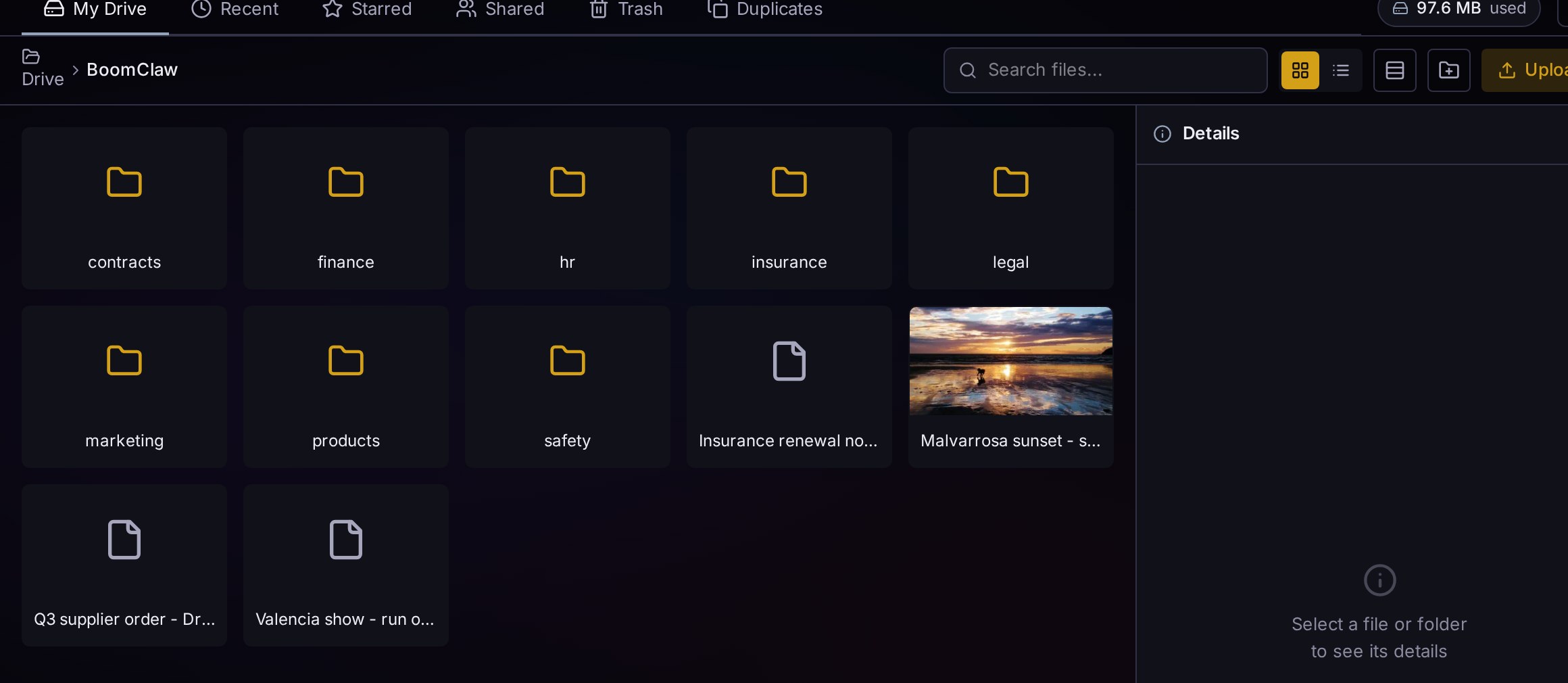
This is a real working drive — a small fireworks company, eight departments, a few loose files that never found a home. Nothing here needs explaining, which is the point. You can drag things around, make folders, upload, star, throw away.
The storage counter in the corner says 97.6 MB used. It’s one number, always visible, and it counts what’s actually on the disk.
The one thing worth noticing: the sunset photo shows a preview and the documents don’t. Previews are made ahead of time, when the file lands, not while you wait for the folder to open. So a folder full of images opens as fast as a folder full of anything else.
QUESTION ONE: DID I ALREADY SAVE THIS?
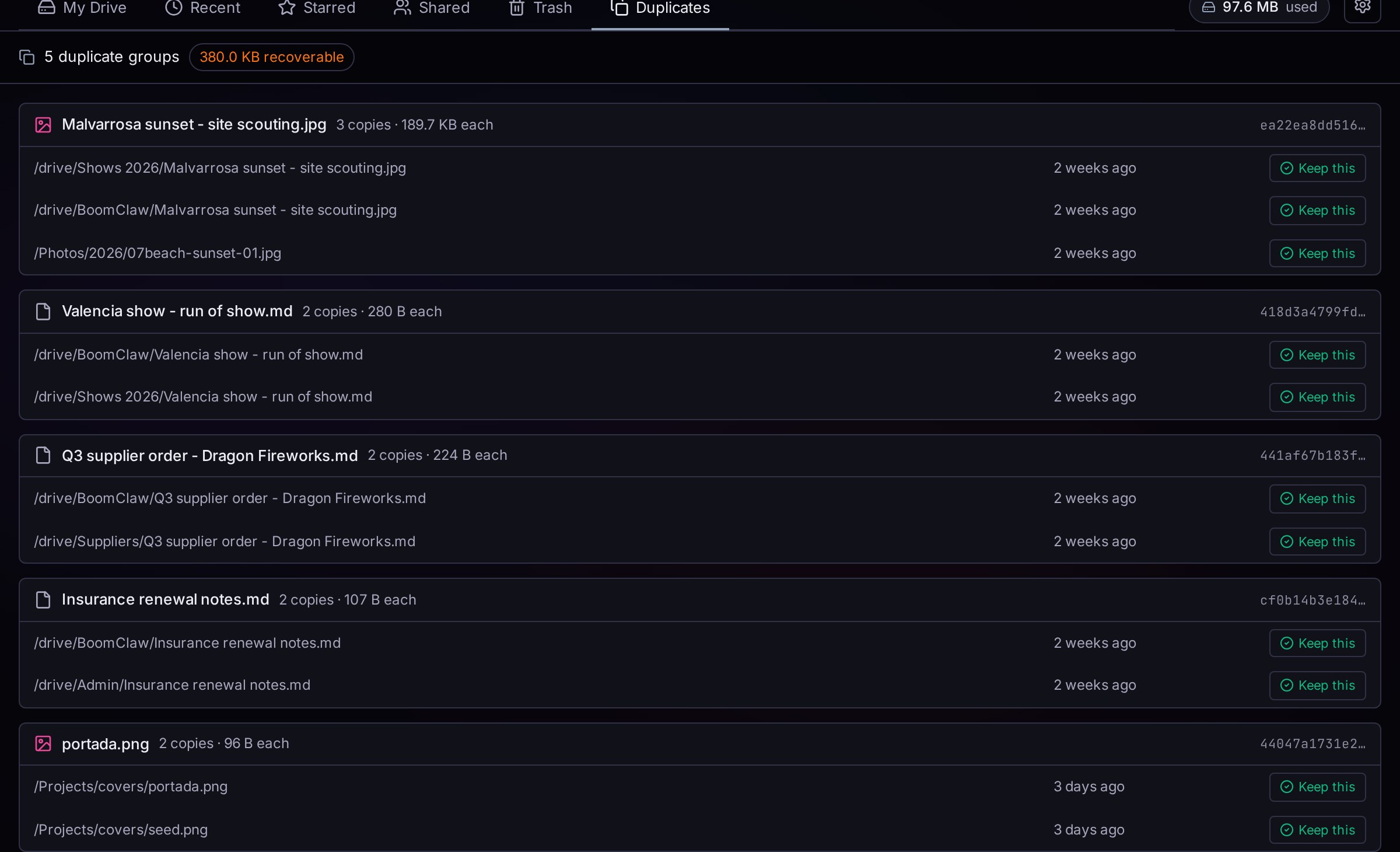
Here’s the whole feature in one screen. Five groups. 380 KB you can get back.
Look at the first one. The same photo of a sunset at the Malvarrosa beach lives in three places:
/drive/Shows 2026/Malvarrosa sunset - site scouting.jpg/drive/BoomClaw/Malvarrosa sunset - site scouting.jpg/Photos/2026/07/beach-sunset-01.jpg
Two of them share a name. The third one doesn’t. It’s the same photo — byte for byte, the same photo — sitting in the camera roll under the name the camera gave it, and no amount of looking through folders was ever going to connect it to the other two.
That’s the part that matters. The grouping isn’t done by name, or by size, or by date. It reads the contents and gives each file a fingerprint; identical contents mean an identical fingerprint, whatever you called it or wherever you dropped it.
And then it doesn’t do anything. Every copy has its own Keep this button, and until you press one, nothing moves. That’s deliberate. A deduplicator that decides for you is a deduplicator that eventually deletes the copy you needed — the one on the desktop you were about to email, or the one your accountant has a link to. The system is allowed to notice. You do the deciding.
Two honest limits:
- It catches identical files, not similar ones. Re-export that sunset at a smaller size and it’s a different file with a different fingerprint. Same picture to you; not to the fingerprint.
- 380 KB is not going to change your life. On this drive the duplicates are small. The value isn’t the space — it’s knowing that the three copies exist, so you stop wondering which one is current.
QUESTION TWO: WHAT DID IT LOOK LIKE BEFORE?
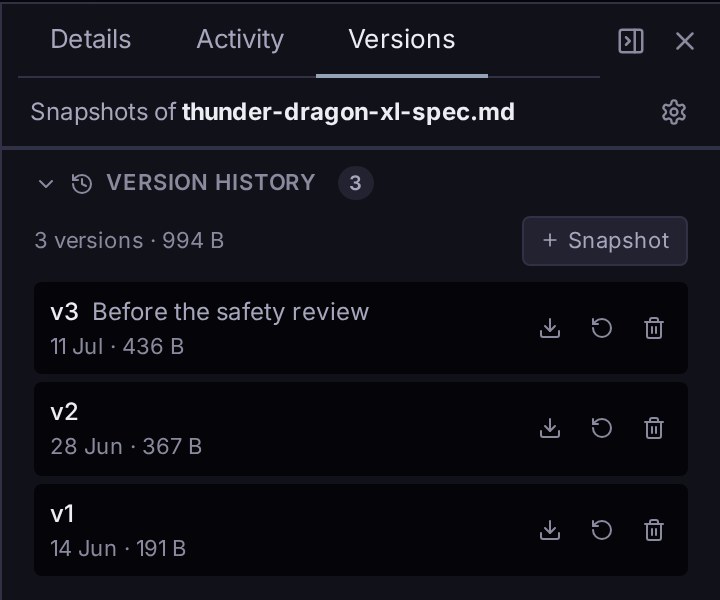
This is a product spec for a firework shell, and it has been through three revisions since June.
- v1, 14 June, 191 bytes — the first draft.
- v2, 28 June, 367 bytes — after the first test firing went wrong.
- v3, 11 July, 436 bytes, labelled “Before the safety review”.
Each one has three buttons: download it, put it back, throw it away.
Two things are going on here, and they’re different. v1 and v2 were taken automatically — nobody asked for them. When you save over a file, the version that was there a second ago gets kept first, and then your new one takes its place. You don’t have to remember to do anything, which is the only reason it works; the backup you have to remember to make is the backup you don’t have.
v3 was taken on purpose. Someone was about to hand the document to a safety reviewer, pressed + Snapshot, and typed “Before the safety review”. That’s the difference between a version history and a useful version history: automatic snapshots tell you when, and a note tells you why.
You can see where this goes. The reviewer comes back and says the minimum distance figure is wrong. You change it. Three weeks later somebody asks what the original measurement was, and the answer is one click away instead of a conversation.
The honest gap: you can’t compare two versions side by side yet. You can download an old one and open it, or restore it and look, but there’s no diff view. For a short document that’s fine. For a long one it’s the first thing you’ll want, and it isn’t there.
WHY THESE TWO AND NOT TWENTY
Both of these exist for the same reason, and it isn’t tidiness.
Every file you keep is a small bet that you’ll be able to find it and trust it later. Duplicates break the trust — three copies and no idea which one is current. A missing history breaks it too — you changed something, you can’t remember what it said, so now you’re not sure the current version is right either.
Neither problem shows up on the day you create it. Both show up eighteen months later, when you need the thing and you’re standing in front of four files with similar names.
WHAT’S NOT HERE
Said plainly, because a features list that only lists wins isn’t information:
- No side-by-side compare between versions, as above.
- Version history is a Pro feature. Snapshots take disk space, and there’s a policy screen behind the gear icon to cap how many are kept per file — but it’s not in the free tier.
- Near-duplicate detection doesn’t exist. Only exact matches. The resized copy of your own photo is invisible to it.
- The duplicate list doesn’t suggest which one to keep. It shows you the paths and the dates and stops. Deliberate, but it does mean you read five lines instead of pressing one button.
THE TAKEAWAY
Folders answer “where”. They were never going to answer “again?” or “before?”.
Those two questions are what turn a drive full of files into a drive you can rely on — and they’re the two you can’t answer by looking harder, because the answer lives across folders and across time. So the system answers them, shows its work, and leaves the decision with you.
Everything on your own hardware, as always. The fingerprints, the snapshots and the previews are all computed at home; nothing about your files goes anywhere.
Next up: your photos. Type what you half-remember about one — the colour of a door, a city, someone in a hi-vis vest — and see if it finds it.